

 by
by It is frustrating, accept it. You’ve just installed Google Antigravity, the new AI-powered IDE that everyone’s calling the “Cursor killer,” and you’re excited to let the AI agent work its magic. You’ve set everything to Turbo mode, enabled all wildcard commands, and configured the Terminal Command Auto Execution policy to “Always execute”. But guess what? Every single time the agent wants to run a command, you see that dreaded “Run command?” dialog with the “Accept All” button staring at you.
You’re not alone. Hundreds of developers have been struggling with this exact issue since Antigravity’s release. The promise of autonomous AI coding becomes tedious when you have to manually click “Accept All” dozens of times per session, defeating the entire purpose of an agentic development environment.
After spending hours searching through settings, Reddit threads, and documentation, I finally found the solution that actually works.
The Problem
Google Antigravity comes with multiple auto-execution policies designed to give you control over how much autonomy the AI agent has. The four main modes are:
- Off: Agent never auto-executes terminal commands unless explicitly allowed
- Auto: Agent decides whether to execute based on internal safety models
- Turbo: Agent always auto-executes commands unless explicitly denied
- Custom: Complete control over execution and review policies
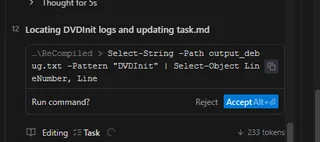
However, despite configuring Turbo mode and setting all permissions to allow automatic execution, the “Accept All” button keeps popping up for every command. Whether it’s updating task files, running npm installs, or executing Python scripts, you’re constantly interrupted to manually approve each action. This appears to be a bug or limitation in how Antigravity handles command approval flows, particularly during project initialization, dependency installation, and testing phases.
The Solution: Antigravity Auto Accept Extension
The fix is surprisingly simple – install the Antigravity Auto Accept extension. This extension bypasses the approval dialog entirely and automatically clicks “Accept All” for you, allowing commands to execute seamlessly as intended.
Installation Steps:
- Open Antigravity IDE
- Navigate to Extensions marketplace (or visit the Open VSX registry)
- Search for “Antigravity Auto Accept” by pesosz
- Click Install
- Reload the IDE if prompted
If you can’t find it, you can download the VSX file from below and import it by clicking on the below setting:
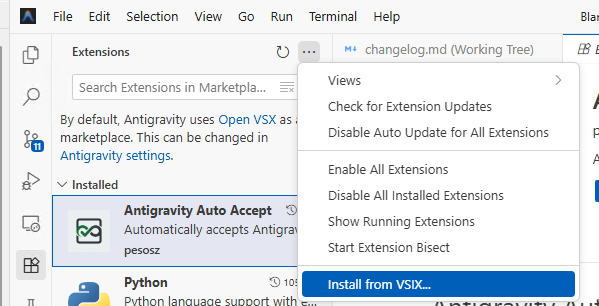
Extension Link: https://open-vsx.org/extension/pesosz/antigravity-auto-accept
Once installed, the extension automatically handles all “Accept All” clicks without requiring manual intervention, allowing Antigravity to work as smoothly as it was designed to. No more repetitive clicking, no more workflow interruptions.
Additional Settings to Check
While the extension solves the primary issue, make sure you also have these settings configured correctly:
In Antigravity Settings → Advanced Settings → Terminal:
- Set Terminal Command Auto Execution to Turbo or Auto
- Review your Deny List to ensure it’s not blocking common commands like
npm install,python, orcurl - Under Agent Review Policy, select Always Proceed if you want maximum autonomy
Why This Matters
For Antigravity to truly compete with tools like Cursor, it needs to deliver on its promise of agentic development – where the AI can autonomously handle tasks from start to finish. The constant interruption of the “Accept All” dialog breaks the flow and makes the tool less effective than traditional IDEs with basic autocomplete.
This extension restores that experience and lets you focus on the bigger picture while Antigravity handles the repetitive terminal commands, dependency management, and testing workflows.
Final Thoughts
Google Antigravity is still in its early days, and bugs like this are expected. The community has been quick to develop workarounds like the Auto Accept extension, which is a testament to how much developers want this tool to succeed.
Hope you get the motivation to give Antigravity another try with this fix in place. Over time, as Google addresses these issues, we should see a more polished and seamless development experience.
Remember, while this extension solves the immediate annoyance, always be mindful of what commands you’re allowing to auto-execute, especially when working with production environments or sensitive data.
Happy coding!