

 by
by 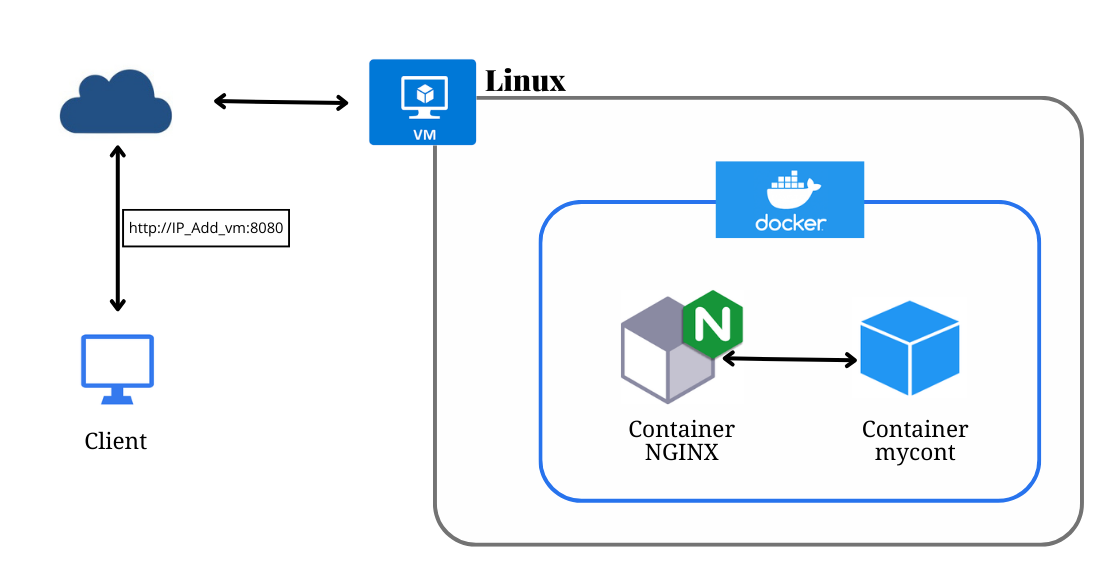
Google AI App Builder makes it easy to generate modern web applications, but once the app is generated, a common question arises:
How do I run this app locally without setting up a backend, database, or cloud infrastructure?
This guide documents a minimal, production-clean approach to hosting a Google AI App Builder–generated app locally, using Docker and Nginx.
No backend.
No database.
No source code changes.
Just build once and serve static files.
What This Guide Covers (and What It Doesn’t)
✅ Covered
- Local hosting only
- Frontend-only application
- Dockerized build
- Static hosting via Nginx
- Works on any machine with Docker
❌ Not Covered
- Backend services
- Databases
- Authentication servers
- Runtime environment variables
- Modifying application source code
This is intentional. The goal is minimalism and reliability, not feature expansion.
Prerequisites
You only need:
- Docker (Docker Desktop or Docker Engine)
- The exported Google AI App Builder project
You do not need:
- Node.js installed on the host
- npm/yarn locally
- Any cloud account
Final Directory Structure
Your project root should contain these files:
Dockerfile
docker-compose.yml
nginx.conf
.dockerignore
package.json
src/
Step 1: Create .dockerignore
This keeps the Docker image clean and avoids leaking local artifacts.
node_modules
dist
.git
.env
Step 2: Create nginx.conf
This configuration is optimized for single-page applications (SPA) and ensures browser refresh works correctly.
server {
  listen 80;
  root /usr/share/nginx/html;
  index index.html;

  location / {
    try_files $uri /index.html;
  }
}
Step 3: Create the Dockerfile
This uses a multi-stage build:
- Stage 1: Build the app using Node.js
- Stage 2: Serve the static files using Nginx
FROM node:18-slim AS builder
WORKDIR /app

COPY package*.json ./
RUN npm ci --legacy-peer-deps

COPY . .
RUN npm run build

FROM nginx:stable-alpine
COPY --from=builder /app/dist /usr/share/nginx/html
COPY nginx.conf /etc/nginx/conf.d/default.conf

EXPOSE 80
CMD ["nginx", "-g", "daemon off;"]
Why
--legacy-peer-deps?
Some generated projects have dependency mismatches. This flag ensures consistent builds without manual dependency surgery.
Step 4: Create docker-compose.yml
Docker Compose keeps the run command simple and repeatable.
version: "3.8"
services:
  web:
    build: .
    ports:
      - "8085:80"
    restart: unless-stopped
⚠️ Note:
Runtime environment variables are not used in static frontend apps. Any API keys must already be baked in at build time (outside the scope of this guide).
Step 5: Build and Run the App
From the project root:
docker compose up -d --build
Once the build completes, open your browser:
http://localhost:8085
That’s it. Your app is live locally.
Useful Management Commands
View logs
docker compose logs -f
Stop the app
docker compose down
Why This Approach Works Well
- No runtime Node.js overhead
- No dependency drift
- Predictable builds
- Clean separation of build vs runtime
- Easy to tear down and recreate
This pattern is conservative, boring, and reliable — which is exactly what you want for local hosting and internal demos.



hello world
hello world