


 by
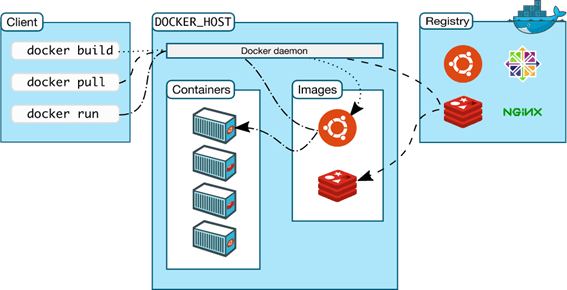
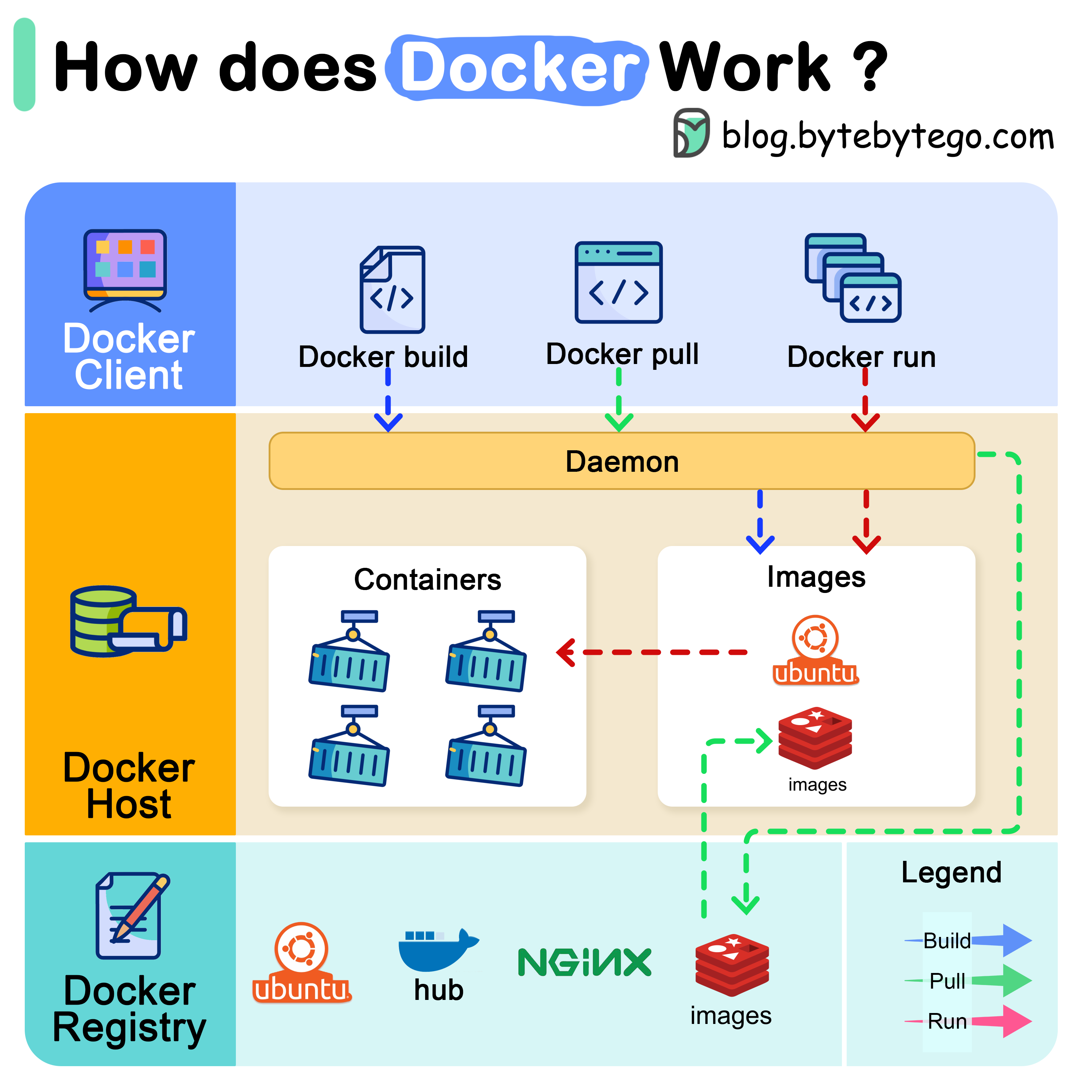
by Docker has become the de-facto standard for running applications in isolated containers. Whether you’re planning to self-host services, run homelab workloads, or prepare a server for future automation, installing Docker correctly on Ubuntu is a foundational step.
In this guide, we’ll walk through a clean, official, and production-ready method to install Docker on an Ubuntu Linux machine—optimized for long-term use and stability.
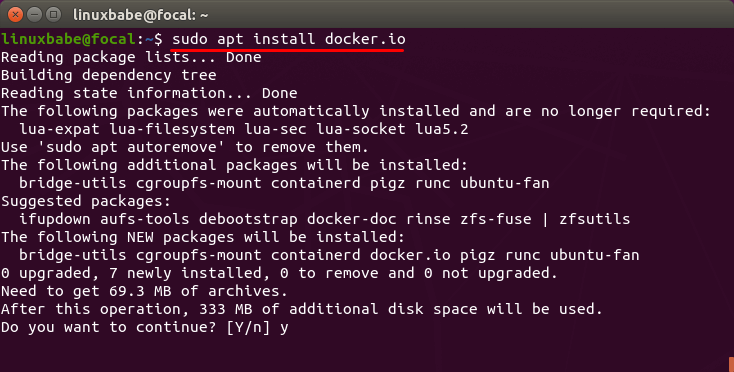
Why Use Docker on Ubuntu?
Ubuntu is one of the most widely supported Linux distributions for Docker. Pairing Ubuntu with Docker gives you:
- Predictable package updates
- Excellent community and vendor support
- Compatibility with most container images
- A strong base for self-hosted and cloud workloads
From a strategic standpoint, this combo keeps your infrastructure modular, portable, and future-proof.
Prerequisites
Before we proceed, make sure you have:
- An Ubuntu system (20.04 LTS, 22.04 LTS, or newer recommended)
- A user account with
sudoprivileges - Internet connectivity
Best practice: Always start with a fully updated system. It avoids subtle dependency issues later.
Step 1: Update the System
Open a terminal and run:
sudo apt update
Don’t do upgrade as this may break the kernel of the Linux which may make it incompatible with the latest docker version.
This ensures your package index and system libraries are up to date.
Step 2: Install Required Packages
Docker relies on a few foundational packages to securely fetch and verify software.
sudo apt install -y ca-certificates curl gnupg lsb-release
These are standard utilities—nothing exotic here.
Step 3: Add Docker’s Official GPG Key
We’ll install Docker from the official source, not Ubuntu’s default repo (which often lags behind).
sudo mkdir -p /etc/apt/keyrings
curl -fsSL https://download.docker.com/linux/ubuntu/gpg | \
sudo gpg --dearmor -o /etc/apt/keyrings/docker.gpg
This ensures package authenticity and integrity.
Step 4: Add the Docker Repository
echo \
"deb [arch=$(dpkg --print-architecture) signed-by=/etc/apt/keyrings/docker.gpg] \
https://download.docker.com/linux/ubuntu \
$(lsb_release -cs) stable" | \
sudo tee /etc/apt/sources.list.d/docker.list > /dev/null
Then refresh the package index:
sudo apt update
Step 5: Install Docker Engine
Now install Docker and its core components:
sudo apt install -y docker-ce docker-ce-cli containerd.io docker-buildx-plugin docker-compose-plugin
At this point, Docker is installed and running on your Ubuntu system.
Step 6: Verify Docker Installation
Run the classic test container:
sudo docker run hello-world
If you see a success message, Docker is working exactly as expected.
Step 7: Run Docker Without sudo (Recommended)
For daily usage, running Docker without sudo improves usability.
sudo usermod -aG docker $USER
Log out and log back in (or reboot) for the change to take effect.
Then test:
docker ps
If it runs without errors, you’re good.
Step 8: Enable Docker at Boot
For servers and long-running machines, Docker should start automatically.
sudo systemctl enable docker
sudo systemctl enable containerd
This ensures your containers survive reboots—non-negotiable for hosting scenarios.
What You Have Now
At this stage, your Ubuntu machine is:
- Running the latest stable Docker Engine
- Ready for Docker Compose workloads
- Suitable for self-hosting, CI tools, media servers, and automation
- Aligned with best practices for long-term maintenance
In other words: a solid platform you won’t have to rethink later.