


 by
by Have you ever spent hours creating a critical automation in Power Automate Desktop (PAD) only to discover it suddenly went missing? If you’re using OneDrive for flow storage, there’s a powerful workaround that can restore your lost flows—even when PAD can’t see them!
In this guide, you’ll learn step-by-step how to restore a missing desktop flow using GUID-named files from OneDrive. Whether you’re an IT pro, RPA enthusiast, or a productivity geek, this recovery trick could save your day.
What Causes Power Automate Desktop Flows to Go Missing?
Sometimes, Power Automate Desktop flows may vanish from your console due to sync glitches, account changes, or OneDrive misbehavior. However, the underlying flow files are often still present in your OneDrive folder. These files are named using a unique GUID (Globally Unique Identifier) and have a matching .meta file. If you find these files, you can restore your lost flow—even if the contents look encrypted or unreadable!

Step-by-Step Guide: Restoring Your Missing PAD Flow
1. Locate Your Missing Flow’s GUID Files
Open your OneDrive folder where PAD stores flows. Look for files with names like:
xxxxxxxx-xxxx-xxxx-xxxx-xxxxxxxxxxxxxxxxxxxx-xxxx-xxxx-xxxx-xxxxxxxxxxxx.meta
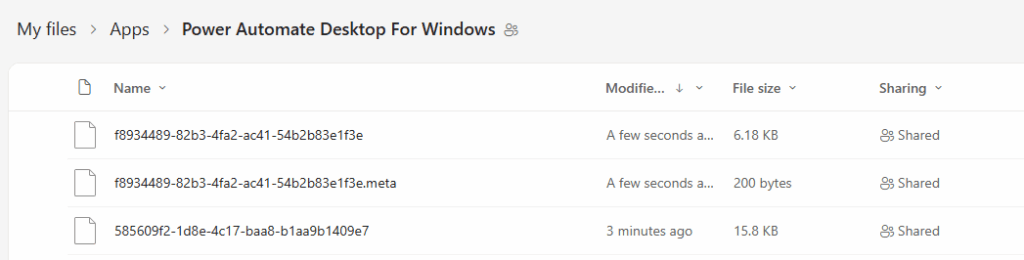
OneDrive folder showing GUID files
2. Download the GUID Files
Download both the GUID-named flow file and its corresponding .meta file to your local PC.
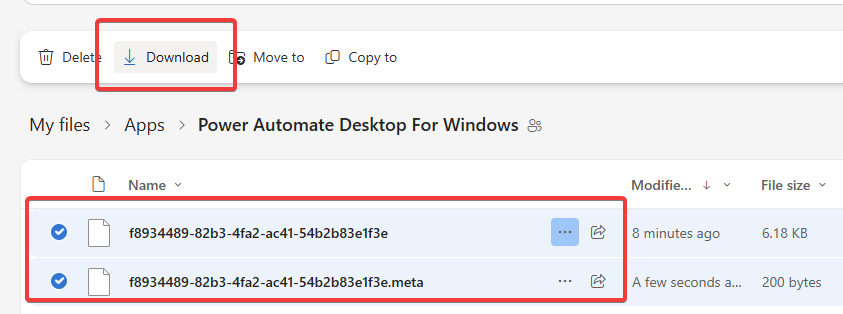
Downloading the files
3. Create a New Dummy Flow in Power Automate Desktop
- Open Power Automate Desktop.
- Create a new (dummy) flow.
This will create a brand-new GUID and.metafile in your OneDrive folder.

Creating a new dummy flow in PAD
4. Find the New Dummy Flow’s GUID
Go back to OneDrive and note the names of the newly created GUID and .meta files.
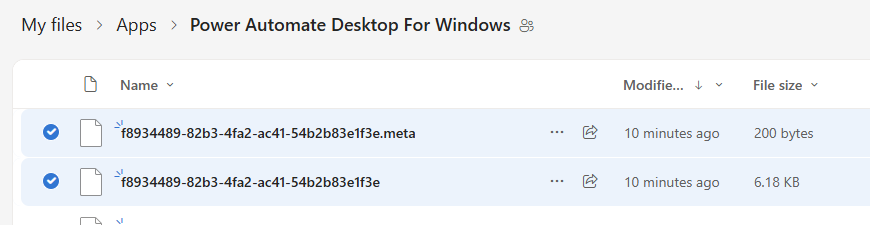
New GUID files from dummy flow
5. Rename Your Downloaded Files
Rename your downloaded (original) GUID and .meta files to match the new dummy flow’s GUID filenames. This step “tricks” PAD into recognizing your lost flow as the new one.
6. Upload and Overwrite the Dummy Files in OneDrive
Upload your renamed files into the OneDrive folder, replacing (overwriting) the dummy flow’s files.
7. Refresh Power Automate Desktop
Open or refresh Power Automate Desktop. Your previously missing flow should now reappear and be fully accessible!
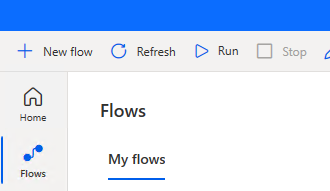
Restored flow in PAD
Warnings & Tips
- Do not edit the contents of GUID files; they are encrypted and can only be read by PAD.
- Make sure you back up files before overwriting anything.
- This method works because PAD identifies flows by their GUID filenames in OneDrive.
- If the flow doesn’t reappear, double-check that you used the correct OneDrive folder and GUID names.
Why This Works
Power Automate Desktop indexes flows based on the GUID filename, not the file content. By copying your missing flow’s files over a fresh GUID, you’re essentially “reviving” the original flow in a new slot—making it visible to PAD again. It’s a neat trick for accidental deletions or sync mishaps!
Final Thoughts
Losing a critical automation can be stressful, but with this OneDrive GUID file trick, you have a robust method to recover missing Power Automate Desktop flows. Bookmark this article or save it to your personal knowledge base for peace of mind in the future.
If you found this guide helpful, share it with your team or community—and leave a comment below if you’ve tried this method yourself.